
Azure Local - Azure Arc Gateway - Part 3a - Enable after deployment (2610 preview)
- Intro
- Step 1 - Confirm that the instance is ready
- Step 2 - Create the gateway resource
- Step 3 - Prepare the firewall without removing anything
- Step 4 - Capture the existing agent configuration
- Step 5 - Capture WinHTTP, WinINet, and resource bridge settings
- Step 6 - Start the Azure Local configuration job
- Step 7 - Monitor the job
- Outro
Intro
This article is part of a series: Navigate to series page
With Azure Local 2610, we can enable Arc Gateway on an existing hyperconverged instance. Previously, the deployment-time decision was much more difficult to revisit.
In this article I will walk through creating the gateway, recording the existing configuration, and starting the portal workflow on my instance. My screenshots show solution version 12.2610.1004.41.
HINT
This post-deployment feature is in preview, and you cannot disable Arc Gateway after enabling it through this preview. Keep the existing endpoint allowlist in place until the operation completes and all validation passes.
Lab status: I submitted the configuration job on 31 October 2026. The local ECE action plan later completed successfully and proxy logs showed gateway traffic, but the Azure job did not reach a matching successful terminal state. This article documents the setup and submission; the screenshot below is not proof of end-to-end success.
Step 1 - Confirm that the instance is ready
The Microsoft post-deployment guide requires solution version 2610 or later.
On the instance Overview page, I first checked Updates:
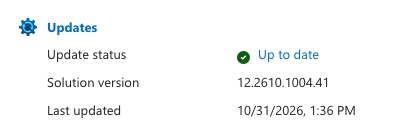
Also confirm that every host is Connected, Azure Arc resource bridge is Running, and the instance is healthy. Record existing AKS proxy and bypass settings separately; this workflow does not automatically update existing AKS clusters.
Under Networking, Arc Gateway (preview) initially showed Not configured:
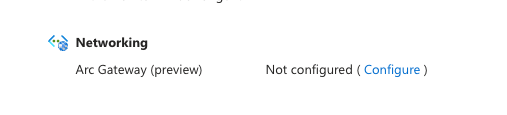
Selecting Configure opened the gateway selection pane. At this point I had no eligible gateway to choose:
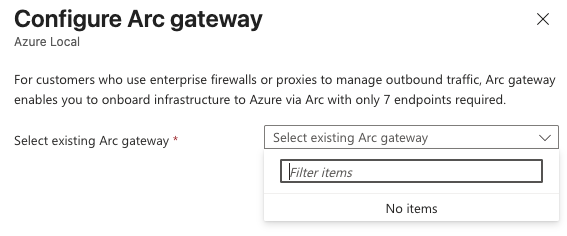
An empty list does not necessarily mean that no gateway exists anywhere in the tenant. This workflow lists eligible gateways in the same tenant and subscription as the Azure Local instance, subject to your access.
Step 2 - Create the gateway resource
The gateway must be provisioned before starting the instance configuration.
In the Azure portal, open Azure Arc, then Azure Arc gateway:
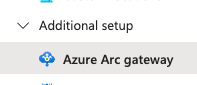
Select Create and choose the Azure Local subscription, gateway resource group, name, and location. This screenshot shows the creation form; the subscription label has been redacted:
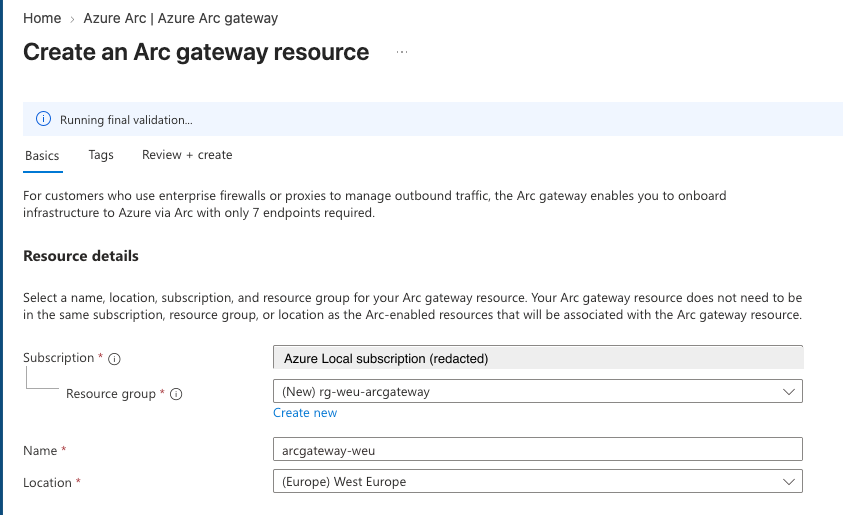
Note that the generic creation form says Arc-enabled resources can use gateways across subscriptions. For this Azure Local workflow, the gateway must be in the same subscription as the instance.
We can also create it with Azure CLI. In Azure Cloud Shell or another authenticated CLI session, use the following commands. The resource group must already exist, and <SUB-ID-HERE> must be replaced with the Azure Local subscription:
az extension add -n arcgateway
az account set --subscription '<SUB-ID-HERE>'

az arcgateway create `
    --name 'arcgateway-weu' `
    --resource-group 'rg-weu-arcgateway' `
    --location 'westeurope'
Run each command only after the previous command succeeds. Do not use both the portal and CLI to create a second gateway if the first creation is still running.
The creation form and CLI example use arcgateway-weu. The selection screenshot shows a differently spelled name, so treat it as an illustration rather than proof that the same resource was selected. In your own deployment, confirm that the selected resource ID is the gateway you created, and record its actual URL.
Allow time for creation. My working estimate was around 30-45 minutes, but that is not a guaranteed completion time. The Azure Local gateway overview currently warns that gateway resource creation can take up to two hours because of Azure Front Door provisioning changes.
Record the resource ID and gateway URL
After creation succeeds, retrieve the resource:
az arcgateway show `
    --name 'arcgateway-weu' `
    --resource-group 'rg-weu-arcgateway'

$ArcgwId = '/subscriptions/<SUB-ID-HERE>/resourceGroups/rg-weu-arcgateway/providers/Microsoft.HybridCompute/gateways/arcgateway-weu'
Record the full resource ID and the returned gateway URL. $ArcgwId above is a reference value; it does not enable the gateway on the Azure Local instance.
The initial-registration parameters $Tenant, $Subscription, $RG, $Region, ArmAccessToken, and TargetSolutionVersion are not needed for the portal enablement steps below. They belong to the initial registration workflow. We are not rerunning Invoke-AzStackHciArcInitialization on this deployed instance.
Step 3 - Prepare the firewall without removing anything
- Allow outbound TCP
443from every Azure Local machine to the assigned gateway URL. - If an enterprise proxy is used, permit that URL through the proxy and disable TLS inspection for the gateway.
- Preserve all current Azure Local endpoint rules during the operation.
- Confirm that the non-redirected endpoints, local bypass destinations, and any
gatewayBypassdestinations remain reachable.
Do not reduce the allowlist while the job is running. Losing an existing dependency during configuration can leave the instance partially configured.
Step 4 - Capture the existing agent configuration
Open an elevated PowerShell session on each Azure Local machine:
azcmagent show
azcmagent check
Here is the relevant part of my agent output before enablement. I cropped out the identity fields:
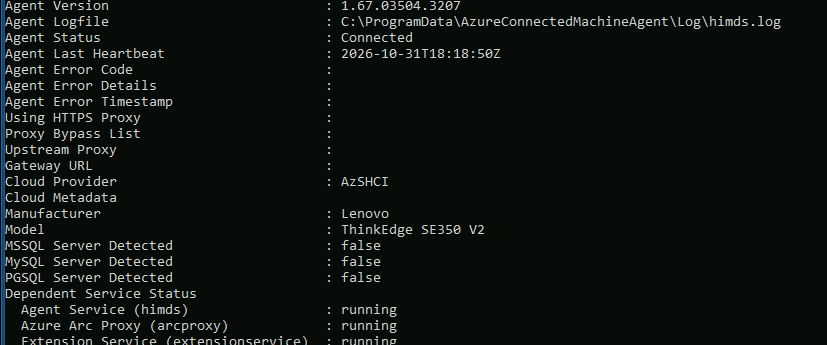
Agent Status was Connected, but Using HTTPS Proxy, Upstream Proxy, and Gateway URL were empty. The arcproxy service was already running. That is a useful reminder that a running service alone does not mean the gateway is enabled.
The baseline endpoint check showed reachable endpoints with Proxy reported as not used:
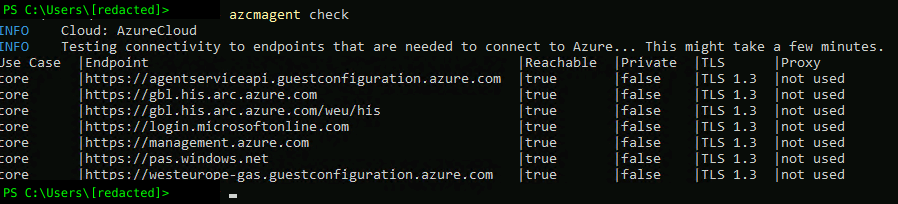
Save the output for every node. A healthy baseline is also useful if you later need to explain whether a failure began before or after the change.
Step 5 - Capture WinHTTP, WinINet, and resource bridge settings
The proxy inspection commands are provided by Azure Local deployment artifacts, not necessarily by the default PowerShell module path.
I import the existing ProxyConfiguration module as documented in Update proxy settings after deployment:
$proxyConfigNuget = Get-ASArtifactPath -NugetName Microsoft.AzureLocal.ArcGateway.Deploy.ProxyConfiguration
$proxyConfigModulePath = 'content\PowerShell\Roles\ProxyConfiguration\ProxyConfiguration.psm1'
Import-Module -Name "$proxyConfigNuget\$proxyConfigModulePath" -Force -Verbose:$false

Get-Command Get-WinHttpProxyConfiguration, Get-WinInetProxyConfiguration

Get-WinHttpProxyConfiguration |
    Format-List ConnectionURI, @{Label='BypassList'; Expression={$_.BypassList -join ','}}

Get-WinInetProxyConfiguration |
    Format-List ConnectionURI, @{Label='BypassList'; Expression={$_.BypassList -join ','}}

Get-ARBProxyConfiguration
Run the host checks on each machine. Read the resource bridge configuration from an appropriate elevated Azure Local session.
If artifact discovery or module import fails, stop and resolve that failure. Do not interpret a missing command as an empty proxy configuration.
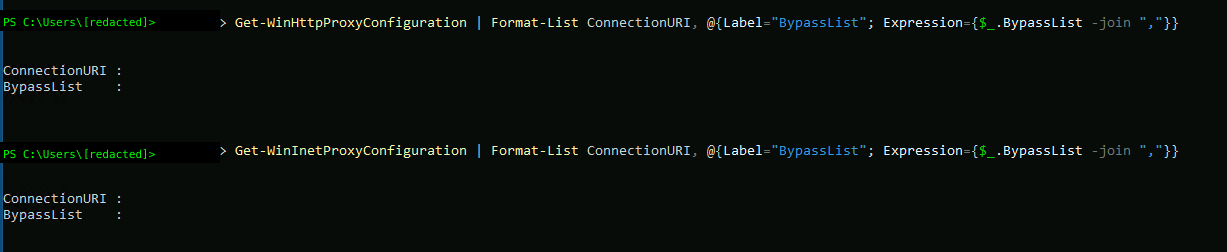
My WinHTTP and WinINet settings were empty before enablement:
Azure Arc resource bridge had no HTTP or HTTPS proxy configured, but it already had a bypass list:

Preserve that complete list. Empty host proxy settings do not imply that the appliance has no relevant configuration.
Step 6 - Start the Azure Local configuration job
Return to the Azure Local instance Overview page:
- Under Networking, select Configure beside Arc Gateway (preview).
- Select the provisioned gateway.
- Select Configure to start the operation.
My gateway was now available in the selection list:
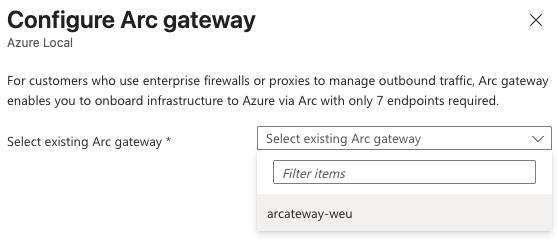
Use this instance-level workflow rather than adding the infrastructure hosts individually through the gateway’s Associated resources page.
The coordinated operation associates the hosts and resource bridge, configures the agents and proxy settings, and updates the instance configuration used by subsequent lifecycle operations.
Step 7 - Monitor the job
The portal opened Jobs (preview) with the Configure Arc gateway job:
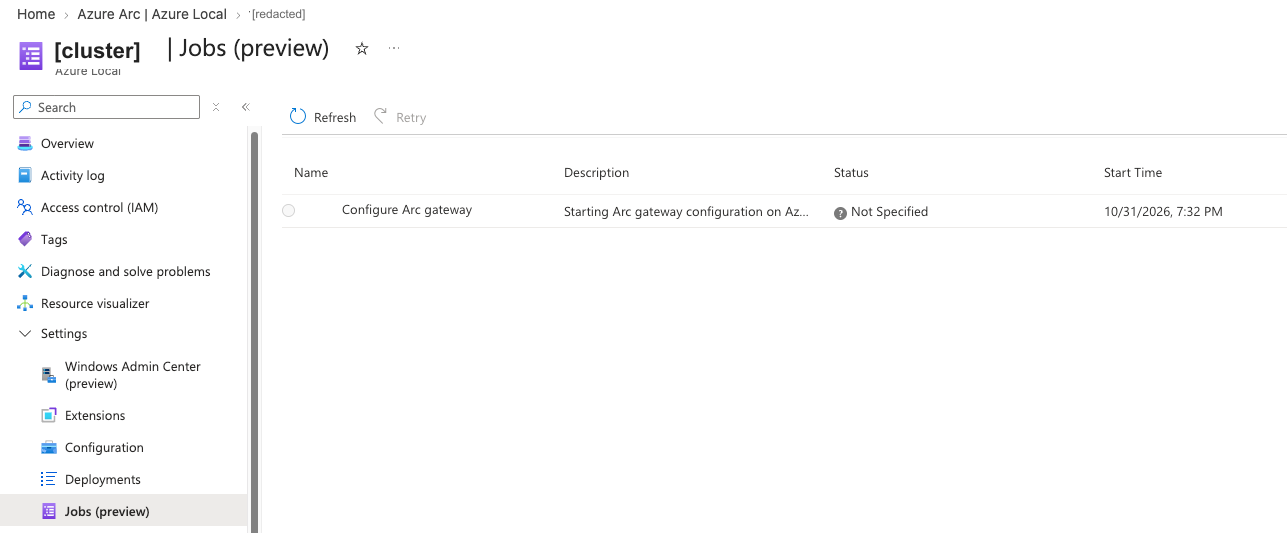
At the time of this screenshot, the status was Not Specified. This records submission only; it does not establish whether the operation succeeded or failed.
Expand the job and monitor its individual steps. Microsoft estimates approximately 15 minutes for agent configuration and 30-60 minutes for the complete multimachine operation, depending on health and connectivity. These estimates are separate from gateway resource creation.
While waiting, leave the existing firewall and proxy rules unchanged. If a step fails, preserve the error details and investigate the affected component before retrying.
The local ECE action later recorded success for every step, but the Azure job did not reach a matching terminal state. Treat this as a cloud/local status discrepancy, not as a clean end-to-end success. The submitted-job screenshot above shows only that the operation was started.
Outro
The portal screenshot in this article records submission, not completion. In my run, subsequent local ECE and proxy-log evidence showed that the configuration action completed successfully, while the Azure job remained inconsistent.
Do not reduce firewall rules based only on the local action result. Resolve the cloud job state and complete the end-to-end checks in Microsoft’s post-deployment validation guidance first.
Have feedback on this post?
Send me a message and I'll get back to you.