Azure Local - Fix: Bootstrap succeeded, but the nodes never appear in Azure
- Intro
- The symptom: success without registration
- Why a disconnect was not enough
- Fix: reset and re-register each node
- If registration still fails
Intro
When I tried to register two Azure Local lab nodes in a different Azure subscription, initialization returned Bootstrap succeeded. However, neither node appeared in the target resource group, and the local Azure Arc agents were still disconnected.
These nodes had previously been registered in another subscription. I had deleted their old Azure resources and disconnected the agents locally, but that had not fully reset the Azure Local registration workflow in my environment. The fix was to run Invoke-AzStackHciArcReset on each node and then initialize registration again.
In this article I will show you how to identify the same symptom, run the supported reset, and verify that each node is connected to the intended subscription.
Important: Microsoft’s unregister and re-register procedure applies to Azure Local 2508 and later, and only to clusters that have not yet been deployed. This is not a procedure for moving an already-deployed Azure Local cluster between subscriptions.
The symptom: success without registration
The registration command was the usual Invoke-AzStackHciArcInitialization, using the tenant, subscription, resource group, and region I wanted. If you need the initial preparation steps, see my Azure Local homelab configuration guide.
Despite the success message, the individual Arc steps were still NotStarted:
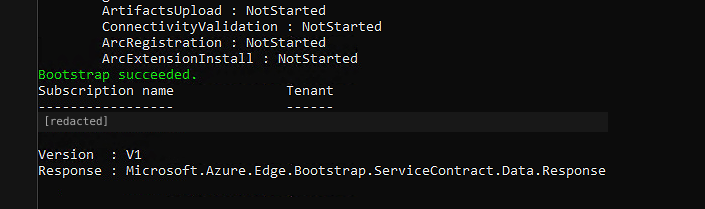
To check whether you have the same issue, open PowerShell as administrator on the affected node and run:
$status = Get-ArcBootstrapStatus
$status.Response | Format-List *
$status.Response.DetailedResponse | ConvertTo-Json -Depth 15

& "$env:ProgramFiles\AzureConnectedMachineAgent\azcmagent.exe" show
In my case, the results did not agree:
| Check | What I found |
|---|---|
| Overall bootstrap status | Succeeded |
ArcConfiguration and its registration steps | NotStarted |
| Arc agent status | Disconnected |
| Agent subscription, tenant, and Resource ID | Empty |
This was not just a delay in the portal. The agent had no current Azure registration identity. A running agent service is not proof that the machine is registered.
If your agent instead reports Connected with a populated Resource ID, check which subscription and resource group it points to before considering a reset. That is a different state from the one described here.
Why a disconnect was not enough
Deleting the old Azure resources and disconnecting the agents had not left these nodes ready for a clean Azure Local re-registration. Microsoft’s reset procedure includes extension, gateway, agent, and bootstrap cleanup, rather than only an agent disconnect.
I also found an earlier successful azcmagent connect operation in the bootstrap logs. It pointed to the old subscription, but it was historical evidence, not the result of the latest attempt. Always check the timestamps before treating a successful log entry as proof of the current connection.
I did not isolate a specific internal flag or implementation defect. What I could establish was that the supported Azure Local reset followed by initialization resolved this case. I did not need to reinstall the agent or operating system, or manually run a standalone azcmagent connect.
Fix: reset and re-register each node
Run the following steps separately on every affected node. All tenant and subscription IDs in the examples are placeholders; replace them with your own values. Environment identifiers in the screenshots are redacted.
1. Confirm that the node is eligible
Before running the reset, confirm that:
- The node is running Azure Local 2508 or later.
- The Azure Local cluster has not been deployed.
- You have local administrator access and the Azure permissions required for registration.
- You know the intended target tenant, subscription, resource group, and region.
Record any existing resource identity with azcmagent show before changing it. Reset unregisters the node; it is not just a status check.
Connect to the node via RDP/Console and open PowerShell as administrator. Confirm that the reset command is available:
Get-Command Invoke-AzStackHciArcResetCommand availability alone does not establish that the node meets the supported scope. If the command is missing, stop and check the installed release and Microsoft’s guidance rather than attempting manual cleanup.
2. Reset Azure Local registration
Set your tenant ID and run the reset:
$Tenant = "<tenant-id>"

Invoke-AzStackHciArcReset -TenantId $Tenant
I have omitted ArmAccessToken, so the command prompts for device-code authentication. Follow the sign-in instructions in the console using an account with the required permissions.
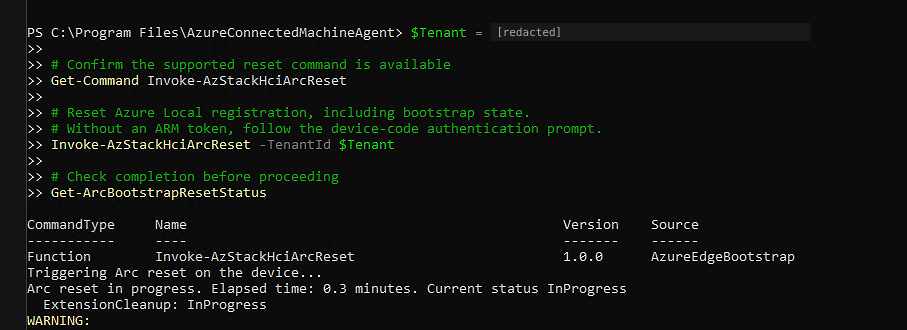
The reset can take time. Check its progress with:
Get-ArcBootstrapResetStatusWait until the reset completes successfully before continuing. The screenshot shows the start of the reset, not its completion. If the reset fails, preserve the error and investigate it rather than forcing additional deletion or cleanup.
3. Initialize registration in the intended subscription
Once reset has completed, set the target registration parameters and run initialization:
$params = @{
    TenantId       = "<tenant-id>"
    SubscriptionID = "<target-subscription-id>"
    ResourceGroup  = "rg-azurelocal-lab"
    Region         = "westeurope"
    Cloud          = "AzureCloud"
}

Invoke-AzStackHciArcInitialization @params
Follow the device-code authentication prompts issued by initialization. A previous Connect-AzAccount sign-in does not necessarily replace authentication within this workflow.
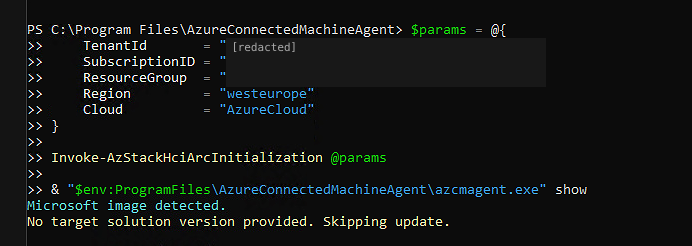
This example uses registration without an Arc gateway or proxy. If your environment needs either, follow the corresponding registration instructions and include the required settings rather than copying this block unchanged. Microsoft’s registration guide covers script parameters and prerequisites.
4. Verify the agent and the Azure resource
After initialization completes, check the local agent again:
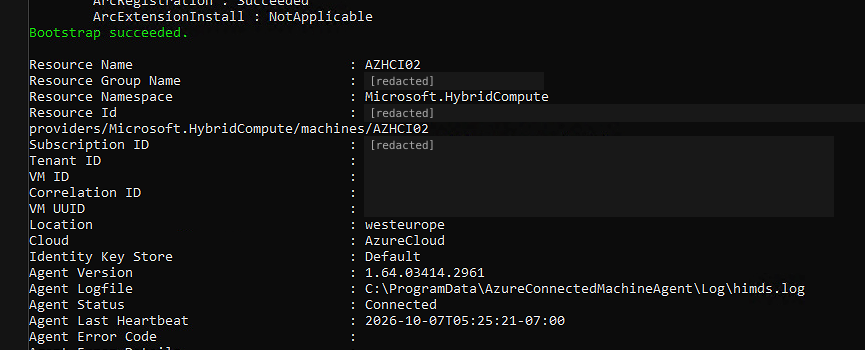
& "$env:ProgramFiles\AzureConnectedMachineAgent\azcmagent.exe" showDo not stop at Bootstrap succeeded. Check that the output now has:
Agent Status:Connected.- The expected subscription ID, tenant ID, resource group, and Resource ID.
- A populated heartbeat and no reported agent errors.
After reset and re-registration, my second node reported Connected, with its Azure resource identity populated:
Then open the Azure portal, select the target subscription and resource group, and confirm that each node appears as a Machine - Azure Arc resource.
If you prefer PowerShell, run this in an authenticated Az PowerShell session:
Connect-AzAccount `
    -UseDeviceAuthentication `
    -Tenant "<tenant-id>" `
    -SubscriptionId "<target-subscription-id>"

Get-AzResource `
    -ResourceGroupName "rg-azurelocal-lab" `
    -ResourceType "Microsoft.HybridCompute/machines" |
    Select-Object Name, Location, ResourceId
Both of my nodes were subsequently connected and visible in the intended subscription. That confirmed registration; it did not mean that Azure Local cluster deployment had also completed.
If registration still fails
If reset or re-registration fails, keep the error output and inspect the bootstrap logs under C:\Windows\System32\Bootstrap\Logs. Match the timestamps and resource IDs to the attempt you are investigating, not an older successful registration.
You can also collect a bootstrap support package:
Collect-ArcBootstrapSupportLogsSee Microsoft’s registration troubleshooting guidance for log collection and Configurator diagnostics.
Final remark: For eligible, undeployed Azure Local nodes, use the documented reset and re-registration workflow rather than relying only on resource deletion and an agent disconnect. Most importantly, verify both the agent’s current identity and the resource in Azure. In this case, Bootstrap succeeded was not enough.
Have feedback on this post?
Send me a message and I'll get back to you.