
Azure Local - Homelab - Part 6 - Enable PowerShell Remoting over HTTPS
- Intro
- Find a suitable certificate
- Create the WinRM HTTPS listener
- Open the firewall port
- Test the connection from the management server
- Replace an existing HTTPS listener
Intro
This article is part of a series: Navigate to series page
When running Azure Local without Active Directory — using local identities and KeyVault mode (available from version 2604, see part 4 and part 5) — there is no Kerberos available for WinRM authentication. Authentication falls back to NTLM over plain HTTP (port 5985), which means credentials travel unencrypted between the management server and the nodes.
Enabling WinRM over HTTPS (port 5986) solves this. Azure Local deployment automatically provisions a self-signed certificate on each node with the machine hostname in the Subject Alternative Names, so in most cases we do not need to issue anything new — we just need to find that certificate and wire it up to a WinRM HTTPS listener.
In this article I will walk through how to identify the right certificate on each node and the management server, create the HTTPS listener, open the required firewall port, and verify the connection. I also cover how to replace an existing HTTPS listener if one was already created with the wrong certificate.
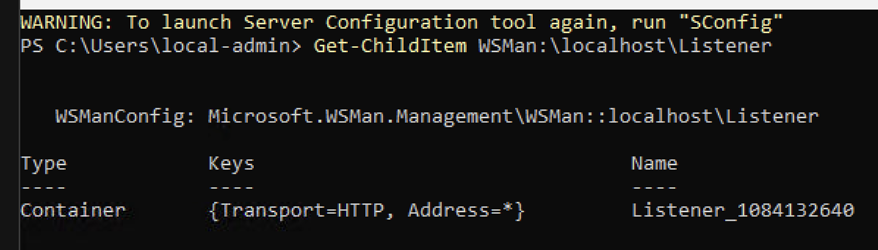
Verify the listener is not created yet
Run this command on each of the Azure Local nodes:
Get-ChildItem WSMan:\localhost\ListenerWe should only see HTTP listener listed.
Find a suitable certificate
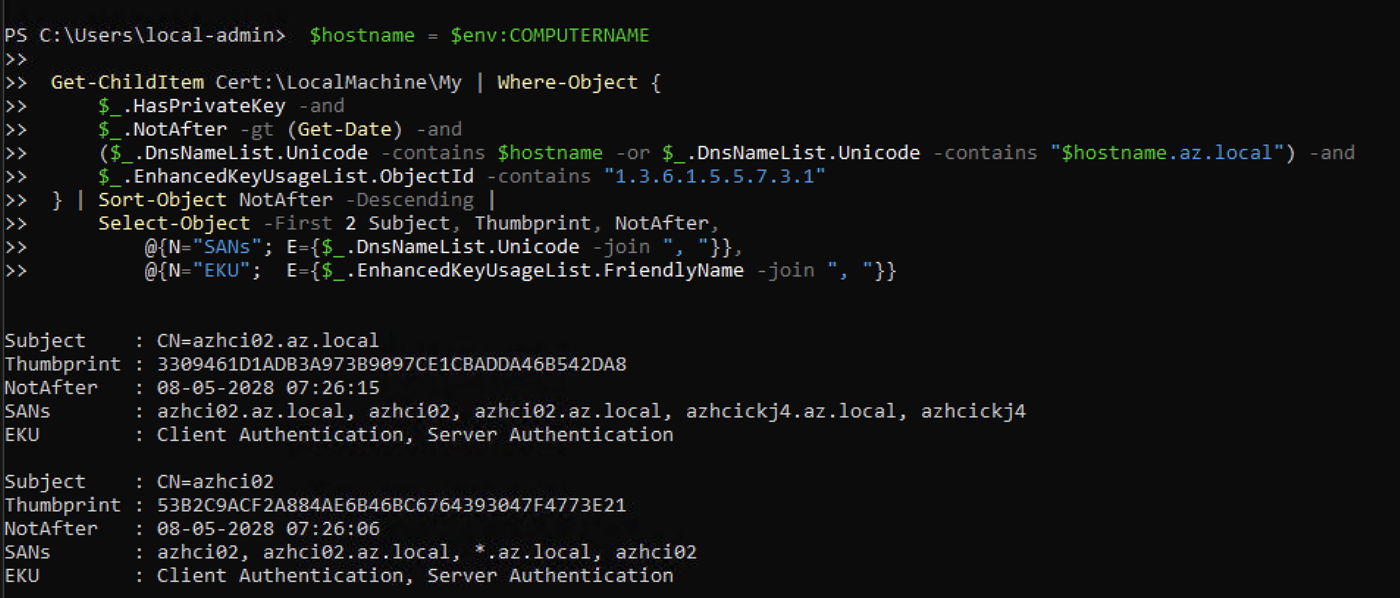
Azure Local deployment places a self-signed certificate in Cert:\LocalMachine\My on each node. We need to locate it by filtering on hostname, validity, and the Server Authentication EKU (1.3.6.1.5.5.7.3.1).
Run this on each Azure Local nodes:
$hostname = $env:COMPUTERNAME

Get-ChildItem Cert:\LocalMachine\My | Where-Object {
    $_.HasPrivateKey -and
    $_.NotAfter -gt (Get-Date) -and
    ($_.DnsNameList.Unicode -contains $hostname -or $_.DnsNameList.Unicode -contains "$hostname.az.local") -and
    $_.EnhancedKeyUsageList.ObjectId -contains "1.3.6.1.5.5.7.3.1"
} | Sort-Object NotAfter -Descending |
    Select-Object -First 2 Subject, Thumbprint, NotAfter,
        @{N="SANs"; E={$_.DnsNameList.Unicode -join ", "}},
        @{N="EKU";  E={$_.EnhancedKeyUsageList.FriendlyName -join ", "}}
Copy the Thumbprint value — we will use it in the next step.
Create the WinRM HTTPS listener
With the thumbprint identified, create the HTTPS listener. Run this on each node, substituting the correct thumbprint:
New-Item -Path WSMan:\localhost\Listener -Transport HTTPS -Address * `
    -CertificateThumbPrint "<thumbprint>" -Force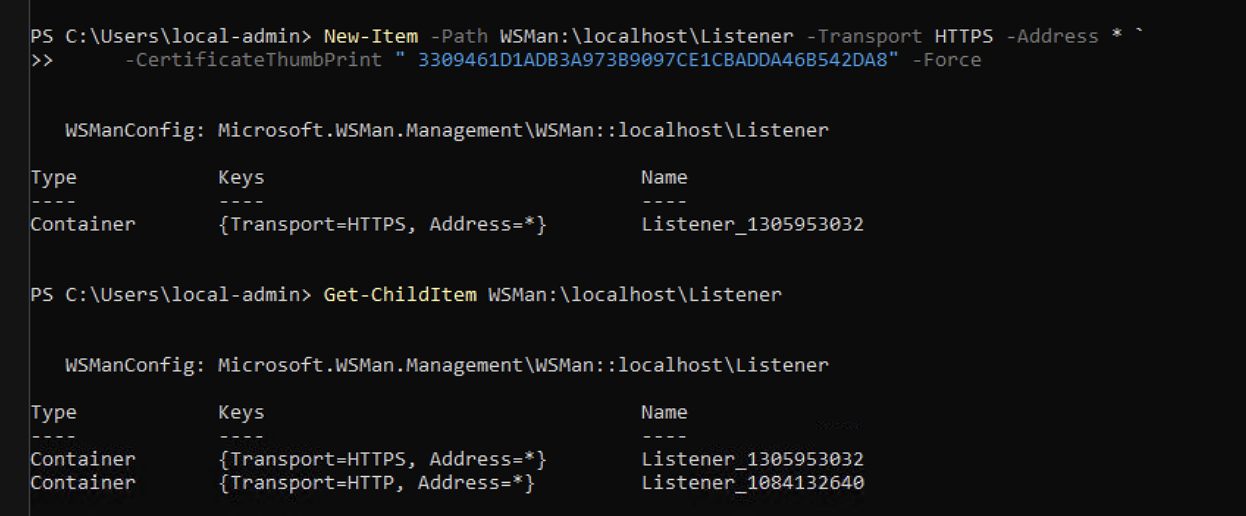
Verify the listener was created
Get-ChildItem WSMan:\localhost\ListenerWe should now see both an HTTP and an HTTPS listener listed.
Open the firewall port
WinRM HTTPS uses TCP port 5986. Create an inbound firewall rule to allow this traffic (run on each node):
New-NetFirewallRule -DisplayName "WinRM HTTPS" -Direction Inbound -Protocol TCP `
    -LocalPort 5986 -Action Allow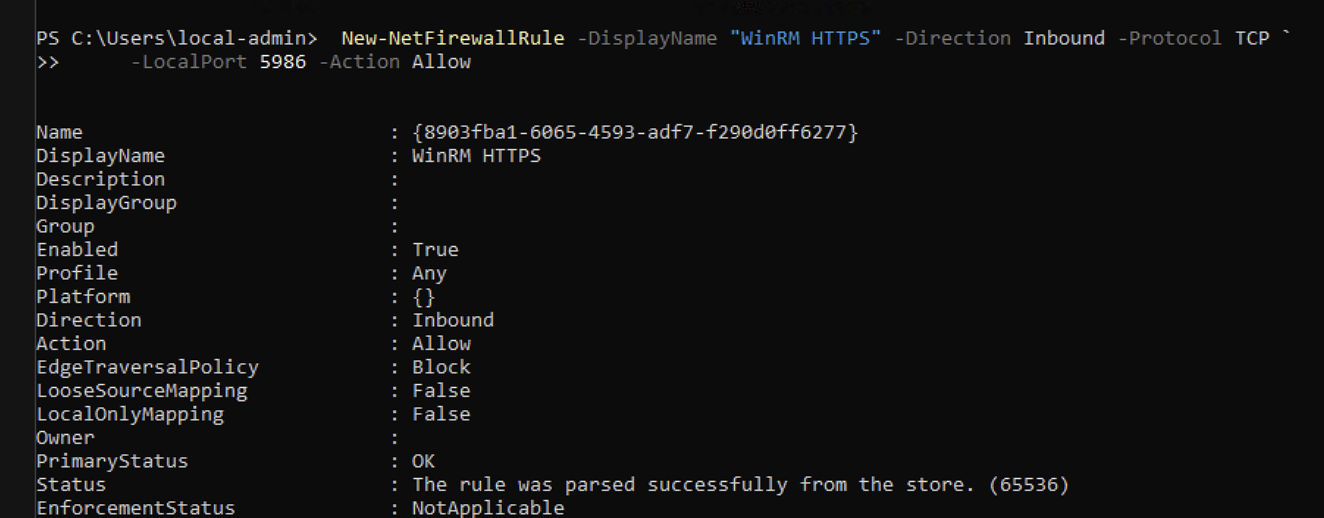
Test the connection from the management server
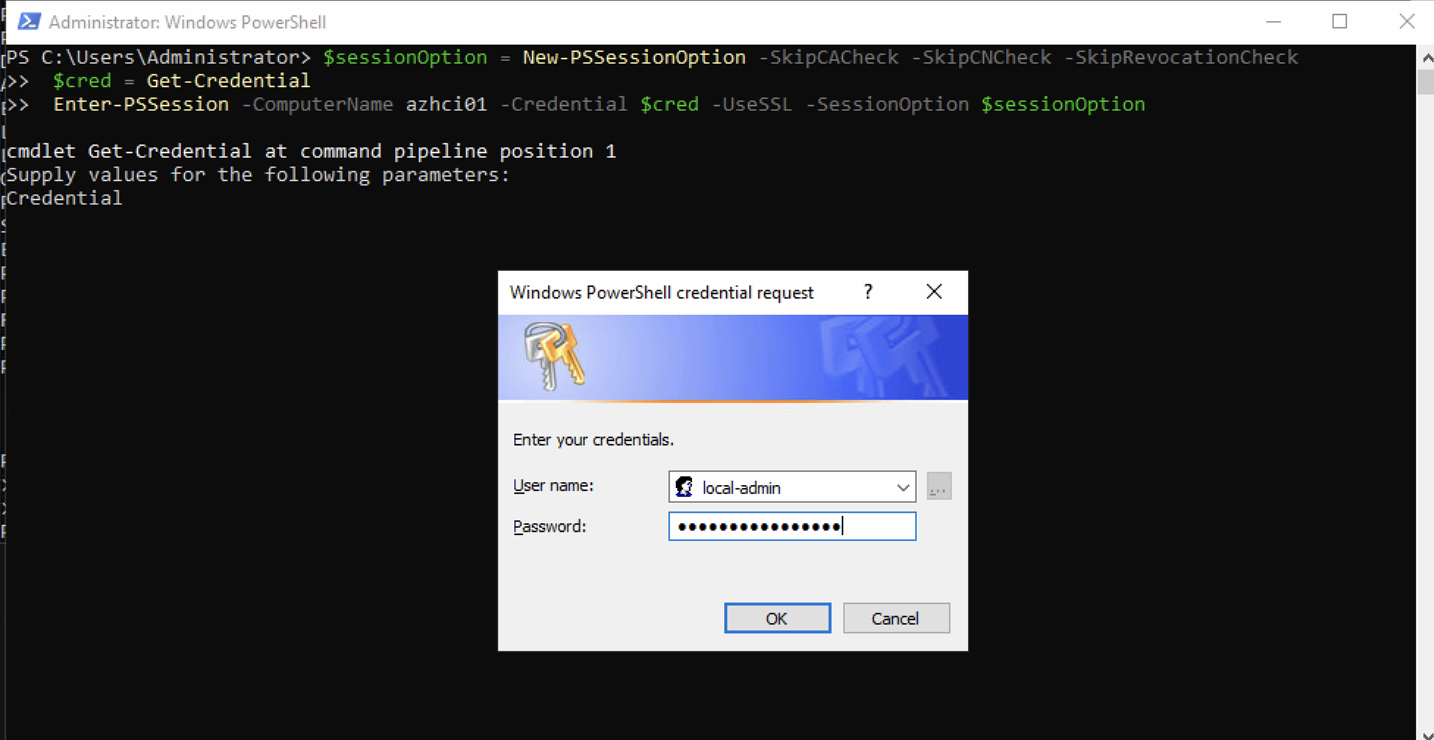
From the management server, establish a remote session to one of the nodes over HTTPS. Since the nodes use self-signed certificates (no AD CA), we skip certificate chain and CN validation:
$sessionOption = New-PSSessionOption -SkipCACheck -SkipCNCheck -SkipRevocationCheck
$cred = Get-Credential
Enter-PSSession -ComputerName azhci01 -Credential $cred -UseSSL -SessionOption $sessionOption
When prompted, enter the local administrator credentials that were defined during the Azure Local deployment wizard (see part 5).
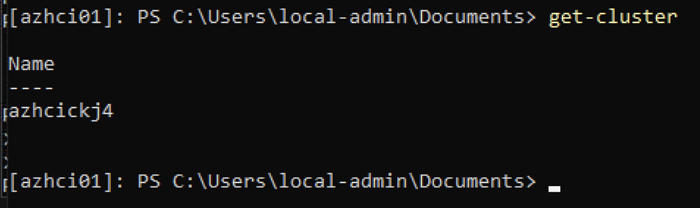
Now we are connected to the node azhci01 and can execute commands:
HINT
-SkipCACheck,-SkipCNCheck, and-SkipRevocationCheckare required here because the certificates are self-signed and not issued by a trusted CA. This is expected in an AD-less / KeyVault mode setup.
Replace an existing HTTPS listener
If an HTTPS listener already exists — for example created during a previous attempt with a different certificate thumbprint — remove it and recreate it:
# Remove existing HTTPS listener
Get-ChildItem WSMan:\localhost\Listener |
    Where-Object { (Get-ChildItem $_.PSPath | Where-Object Name -eq "Transport").Value -eq "HTTPS" } |
    Remove-Item -Recurse -Force

# Recreate with correct certificate
New-Item -Path WSMan:\localhost\Listener -Transport HTTPS -Address * `
    -CertificateThumbPrint "<correct-thumbprint>" -Force
Verify with Get-ChildItem WSMan:\localhost\Listener that the updated listener is in place before testing the connection again.
Final remark: once HTTPS remoting is confirmed working across all nodes, consider removing the plain HTTP listener to ensure that no unencrypted remote sessions can be established — intentionally or by mistake.
Have feedback on this post?
Send me a message and I'll get back to you.