Azure Local – Design the infrastructure
I have seen many designs of Azure Local stacks that have encountered issues that could have been prevented if the design was changed to follow some best practices. I wanted to share some of the things I have come across that should never have been built the way it was. I have also included some drawings of minimal designs based on my experiences.
Active Directory
At some point we will likely not need Active Directory anymore. Currently in public preview, we can start use Azure KeyVault instead. But for now, lets keep on Active Directory in our deployment scope. Source: https://learn.microsoft.com/en-us/azure/azure-local/deploy/deployment-local-identity-with-key-vault?view=azloc-2506
Joined Azure Local to production domain
I see it all the time. Azure Local is been joined to the same domain as production where all kinds of member servers and clients also are joined to (client devices should not be in any domain, they should be joined to Entra ID and only connected to domain member servers via Cloud Kerberos Trust). This is not a recommended approach. Yes, if your domain is fully configured with LAPS, Tiering, Kerberos armoring, disabling of older protocols e.g., you would have a “safe” domain that you could join your Azure Local nodes into. However, I would still not do it. I will always prefer a dedicated management Active Directory for Azure Local. This is because I can then segment this management domain completely from all other areas of my environment. In some industries this is referred to as “out-off-band”. This management Active Directory should only be reached from Azure Local nodes management network and from a secured instance of Azure Bastion.
Active Directory for Azure Local running on top of stack
I believe this speaks for itself, but having the Active Directory that Azure Local is joined to, running on top of the same stack, is prone to fail at some point. That is why I like running management Active Directory in Azure. No need for extra hardware for management domain, just running a few small VMs in Azure.
Active Directory DNS Servers
Then deploying Azure Local 23H2 and newer, we need to be aware that the DNS servers we specify for the MOC IP Range, will be very hard to change afterwards (require redeployment of the MOC). If possible, deploy a private DNS resolver in Azure, use Azure Firewall with DNS Proxy or another method of DNS proxy. In some cases I just use IP addresses of Active Directory DNS servers directly, but I always make sure the customer understand this deployment option and that they cannot just swap IP addresses of those DNS servers at a later time without a huge redeployment job of the MOC.
Networking
One Azure Local stack per management VLAN
You may run into serious trouble if you choose to deploy multiple Azure Local Stacks on the same management VLAN. Azure Local stacks must always have separate VLANs for storage if using the storage configuration with a storage switch between nodes.
Compute VLANs can be shared between stacks.
And you would think that sharing a large management network for all your stacks would not cause any issues as long as no IP overlapping is present.
Security wise it is recommended to have a separate VLAN for each Azure Local management network, but there is another issue;
Installing Azure Local on one stack, and then later you want to install a new Azure Local stack on one of the nodes (maybe due to issues that require total redeployment using a new stack deployment on the first node and later move workloads and reinstall other nodes into new stack), the MOC ARB can reuse the same MAC address, causes unstable network and lose of access from Azure to the Azure Local stacks.
Azure Local MOC starts MAC address assignment using these 4 letters first: 02-ec Rest of the MAC address is calculated, and should ensure no MAC address reuse is possible.
However, I have seen real life example of that not being true if one performs the scenario I described earlier in this section.
Conclusion: use one management VLAN per Azure Local stack. Use subnetting to have segmented your network into smaller ranges.
You can start with a 10.0.0.0/8 IP range.
If you have an Azure Local stack with 2 nodes you must have the following amount of IP addresses:
- 1 for network address (standard first reserved IP)
- 1 for default gateway
- 1 for broadcast traffic (standard last reserved IP)
- 1 per node
- 6 addresses for Azure Local infrastructure
Consider leaving IP addresses in spare, I would go with a /28 subnet.
So my first subnet would be:
- 10.0.0.0/28
And my next subnets would be:
- 10.0.0.16/28
- 10.0.0.32/28
- 10.0.0.48/28
- 10.0.0.64/28
And so on.
Lack of RDMA support (Recommended)
RDMA (Remote Direct Memory Access) support on network adapter cards is essential when working with Storage Spaces Direct (S2D) in Azure Stack HCI or Azure Local environments because it enables low-latency, high-throughput communication between nodes with minimal CPU overhead. RDMA allows data to be transferred directly between the memory of different servers without involving the CPU, significantly improving performance for storage traffic. This is critical for S2D, which relies heavily on east-west network traffic to mirror and distribute storage across cluster nodes. Without RDMA, performance suffers due to increased latency and CPU load, reducing the efficiency and scalability of the system.
Lack of RSS support (Mandatory)
RSS (Receive Side Scaling) support on network adapter cards is important when using Storage Spaces Direct (S2D) in Azure Local because it ensures efficient processing of high-volume network traffic across multiple CPU cores. S2D generates substantial east-west traffic between cluster nodes, and without RSS, all incoming traffic would be handled by a single core, creating a bottleneck. RSS distributes network processing across multiple cores, improving throughput and reducing latency. This parallel processing is essential for maintaining consistent performance and maximizing the benefits of S2D in high-performance, hyper-converged infrastructure environments.
My go-to network adapter card
When possible, I go for Melanox. Melanox have good support for Azure Local. I have often used ConnectX-2 LX and ConnectX-4 LX.
Switchless networking for storage
In some setups I have storage intent without a switch. This is referred to as switchless and is supported for up to 4 nodes (please look at the requirement if aiming for 4 node support, because it requires 6 storage NICs per node).
However, as of writing this article, if we choose 2 node setup to begin with in a switchless setup, Microsoft currently does not support expanding to 3 or 4 nodes. This could be a key point for choosing to include a supported storage switch to begin with, because we can then go for 2 or 4 storage NICs per node and have the capability to expand to more nodes in the future.
Compute intent with DHCP IP addresses
I often see that there is DHCP enabled on compute network VLANs. That can be enabled for a valid reason for workloads running on top of the Azure Local stack. However, no need to assign any static or DHCP IP addresses (you could do a closed untagged VLAN on the compute intent with static IP addresses on each node just to enable the failover cluster to recon the network as compute, but not required) on the untagged VLAN going go the NICs on the compute intent. I like to configure only tagged VLANs on compute intent because it is only used for workloads running on top of the Azure Local stack.
Storage
Cluster Shared Volumes
Microsoft recommends us to configure 1 CSV per node in the cluster and divide workloads across these CSVs. This is also default when deploying a new stack. So if our stack consists of 4 nodes, we should have 4 CSVs created and in production mode, we should ensure that each node is owner of 1 CSV to spread ownership of CSVs across nodes.
Cache and capacity storage
Some customers goes for all flash SSD, but we can gain more speed and better price to space ratio, if we use use tiered model.
We can use a combination of NVMe, SSD, and HDD in Azure Local (Storage Spaces Direct)—this is actually a common and recommended approach to build a hybrid storage configuration that balances performance and capacity.
Here’s how it typically works:
- NVMe drives are used as the cache tier (also called performance tier).
- SSD and/or HDD drives are used as the capacity tier (also called capacity devices).
Benefits:
- NVMe Cache Tier: Accelerates read/write performance by buffering data before it’s written to slower disks.
- HDD Capacity Tier: Offers large storage capacity at lower cost per TB.
- SSD Capacity Tier (optional): Used when you want faster capacity storage but without the high cost of all-NVMe.
Key Considerations:
- All nodes in the cluster should have a consistent drive layout.
- NVMe cache is especially beneficial in write-intensive or latency-sensitive workloads.
- S2D automatically manages tiering between cache and capacity layers.
Typical Example:
A 2-tier configuration might look like:
- 2 × NVMe drives (cache)
- 4 × HDDs or SATA SSDs (capacity)
This setup is fully supported and optimized in Azure Local for performance and efficiency.
Designs
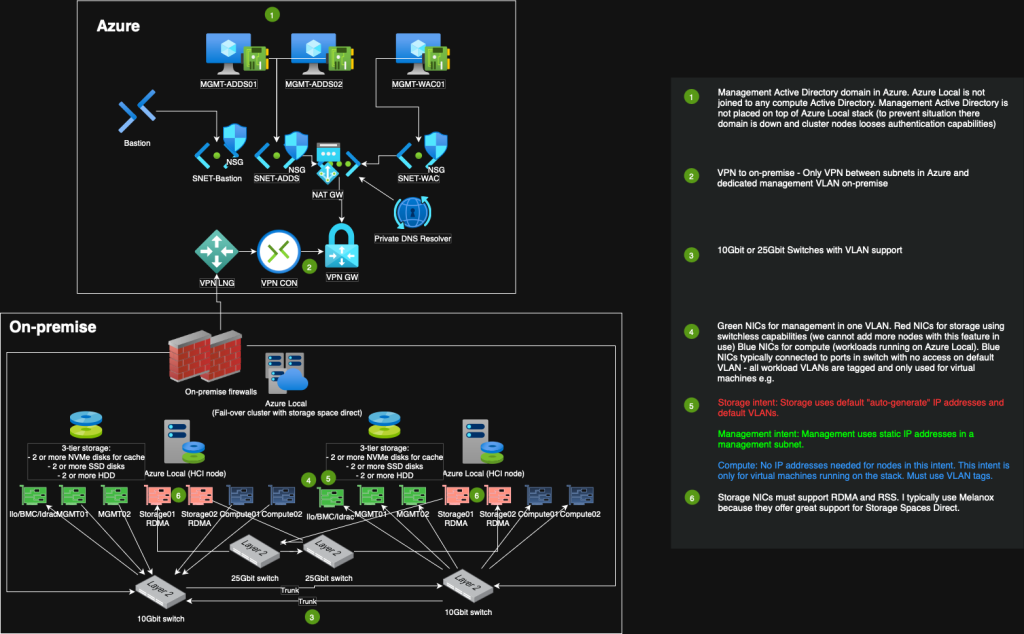
Design 1: – 2 node setup with storage switch
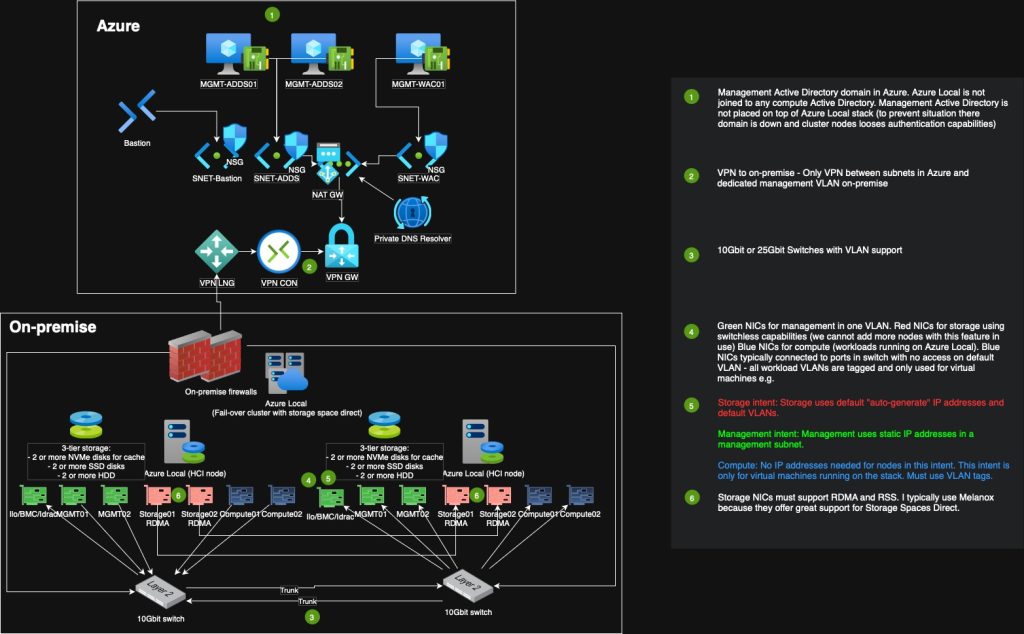
Design 2: – 2 node setup with switchless storage
Have feedback on this post?
Send me a message and I'll get back to you.