Azure Local - Kubernetes - Part 4 - Deploy Azure Arc Data Controller
- Intro
- Prerequisites
- Step 1 — Install the Arc Data Services extension
- Step 2 — Create the Data Controller
- Step 3 — Verify the deployment
- Post-deployment — Custom locations
Intro
This article is part of a series: Navigate to series page
An Azure Arc Data Controller is a prerequisite for running Azure Arc-enabled data services such as SQL Managed Instance and PostgreSQL on your Kubernetes cluster. It acts as the management plane that handles deployment, upgrades, monitoring, and security of your data services.
In this article I will walk through deploying an Azure Arc Data Controller on my AKS Arc cluster running on Azure Local. Along the way, I discovered that the Azure Portal wizard will not let you proceed until the microsoft.arcdataservices extension is installed on the Kubernetes cluster — and this extension must be installed via the CLI first.
Prerequisites
Before starting, make sure you have:
- A running AKS Arc cluster on Azure Local (see Part 1 of this series)
- The Azure CLI with the
k8s-extensionandaksarcextensions installed
Step 1 — Install the Arc Data Services extension
When I first navigated to Azure Arc data controllers in the Azure Portal and clicked Create, the wizard showed the Prerequisites tab where I selected Azure Arc-enabled Kubernetes cluster (Direct connectivity mode).
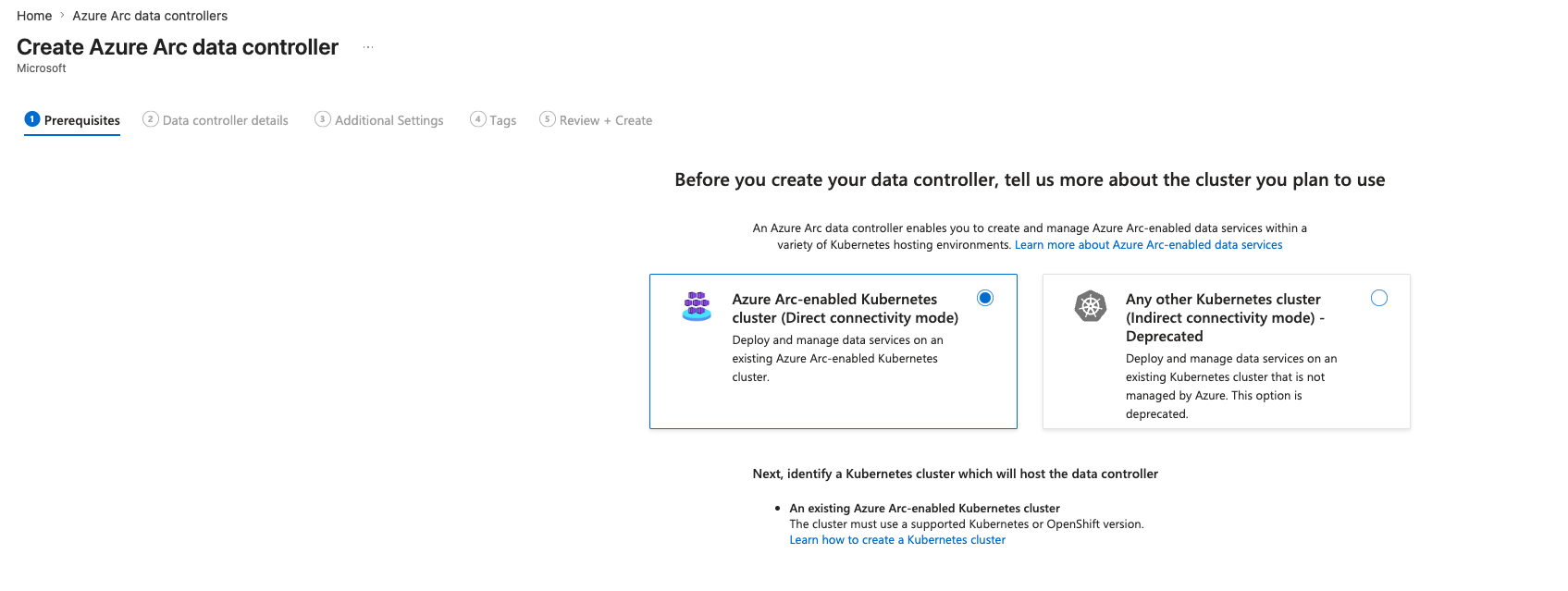
However, before I could proceed with the wizard, I needed to install the microsoft.arcdataservices extension on my Kubernetes cluster. Without this extension, the data controller deployment will fail.
Install the extension using the Azure CLI:
az k8s-extension create \
  --name arc-data-services \
  --extension-type microsoft.arcdataservices \
  --cluster-name k8s-azhcickj4 \
  --resource-group rg-ckj-azl-lab-westeurope \
  --cluster-type connectedClusters \
  --auto-upgrade-minor-version false \
  --scope cluster \
  --release-namespace arc-data-services
This takes a few minutes. Once complete, verify the extension is installed:
az k8s-extension show \
  --name arc-data-services \
  --cluster-name k8s-azhcickj4 \
  --resource-group rg-ckj-azl-lab-westeurope \
  --cluster-type connectedClusters \
  --query installState -o tsv
The output should be Installed. You can also verify in the Azure Portal under the Kubernetes cluster’s Extensions blade — it should show arc-data-services with status Succeeded.

Step 2 — Create the Data Controller
Now go back to the Azure Portal and navigate to Azure Arc data controllers → Create.
Data controller details
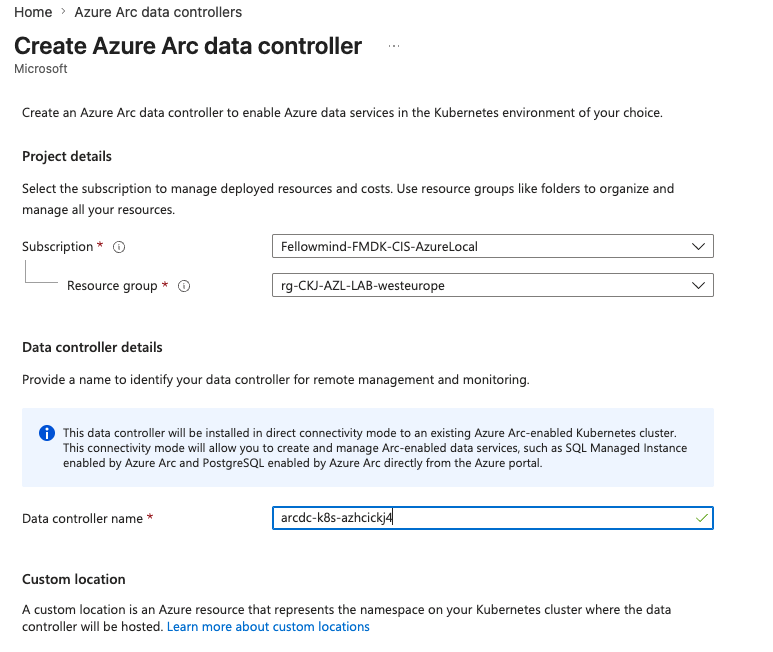
On the Data controller details tab, configure:
- Subscription: Select your subscription
- Resource group: Use the same resource group as your Kubernetes cluster
- Data controller name: I used
arcdc-k8s-azhcickj4
Custom location
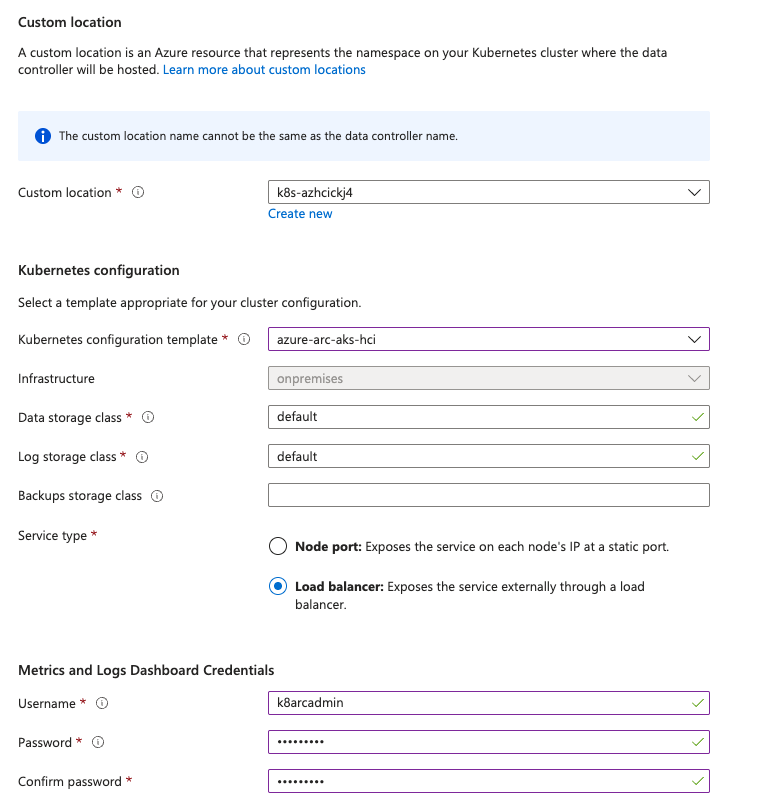
The data controller needs a custom location that maps to the arc-data-services namespace on your Kubernetes cluster. Click Create new and configure:
- Name:
k8s-azhcickj4 - Cluster:
k8s-azhcickj4 - Namespace:
arc-data-services
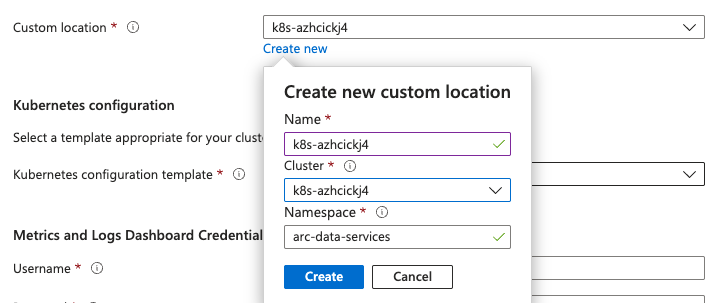
HINT The custom location name cannot be the same as the data controller name. Note that this is a separate custom location from the one used by Azure Local itself — after deployment you will have two custom locations: one for Azure Local (
azhcickj4) and one for Arc data services (k8s-azhcickj4).
Kubernetes configuration
Configure the remaining settings on the same tab:
- Kubernetes configuration template:
azure-arc-aks-hci - Infrastructure:
onpremises(auto-populated) - Data storage class:
default - Log storage class:
default - Service type:
Load balancer
Under Metrics and Logs Dashboard Credentials, provide a username and password for the monitoring dashboards.
Additional Settings
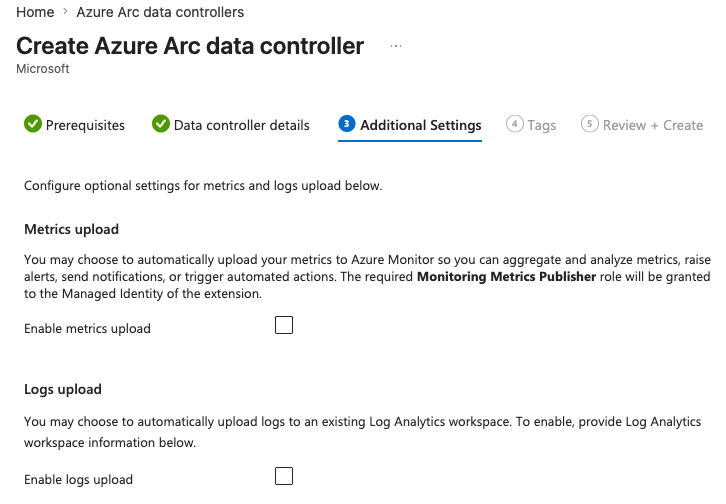
On the Additional Settings tab, you can optionally enable automatic upload of metrics and logs to Azure Monitor. I left both disabled for now since this is a lab environment.
Review and create
Add tags, then click Review + create and Create.
Step 3 — Verify the deployment
After a few minutes, the data controller will appear in the Azure Arc data controllers list.

Clicking into the resource, you may initially see the status as Deploying while the controller pods start up.
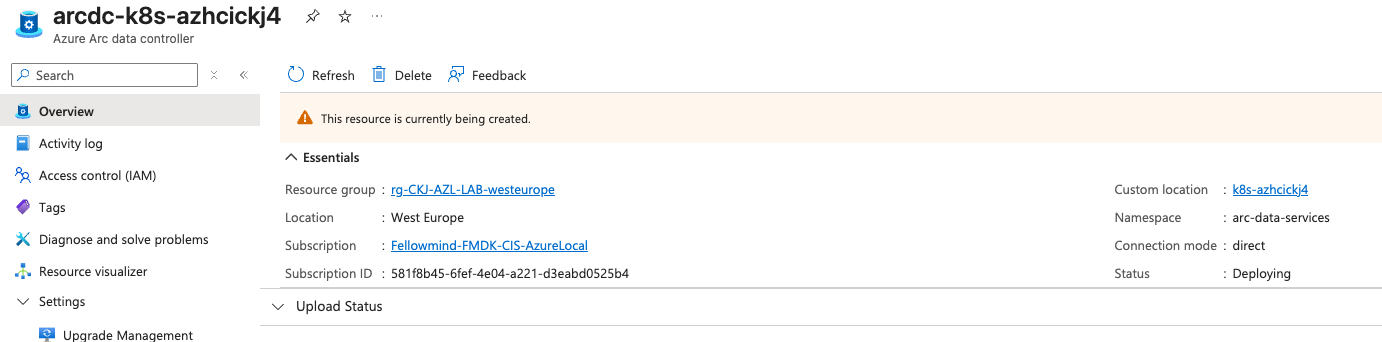
You can verify the deployment state from the CLI:
az resource show \
  --name arcdc-k8s-azhcickj4 \
  --resource-group rg-ckj-azl-lab-westeurope \
  --resource-type "Microsoft.AzureArcData/dataControllers" \
  --query "properties.k8sRaw.status" -o json
Once the controller is ready, this will show state: "Ready".
Troubleshooting — controldb pod stuck in Pending
During my deployment, the controldb pod was initially stuck in a Pending state, which caused the data controller to remain in DeployingController. The control pod could not initialize because the database was not running. The root cause turned out to be insufficient memory on the single worker node — I cover the full troubleshooting and fix in Part 5.
Once the underlying scheduling issue resolved and all pods became Running and 1/1 ready, the data controller self-healed on the next upload cycle (which runs every ~15 minutes).
If the controller remains stuck after 30 minutes even though all pods are healthy, you can force a fresh reconciliation by deleting the control pod:
kubectl delete pod <control-pod-name> -n arc-data-servicesThe StatefulSet or ReplicaSet will recreate the pod with a clean restart counter, which should clear the stale state.
Post-deployment — Custom locations
After a successful deployment, navigating to Azure Arc → Custom locations in the Azure Portal will show two custom locations:
- azhcickj4 — the custom location for Azure Local itself (backed by the Arc Resource Bridge)
- k8s-azhcickj4 — the custom location for Arc data services on the Kubernetes cluster

With the data controller deployed, you are now ready to create Azure Arc-enabled data services such as SQL Managed Instance or PostgreSQL directly from the Azure Portal.
Have feedback on this post?
Send me a message and I'll get back to you.